A professional prompt for turning a meal name into a full recipe infographic
· 3 min read
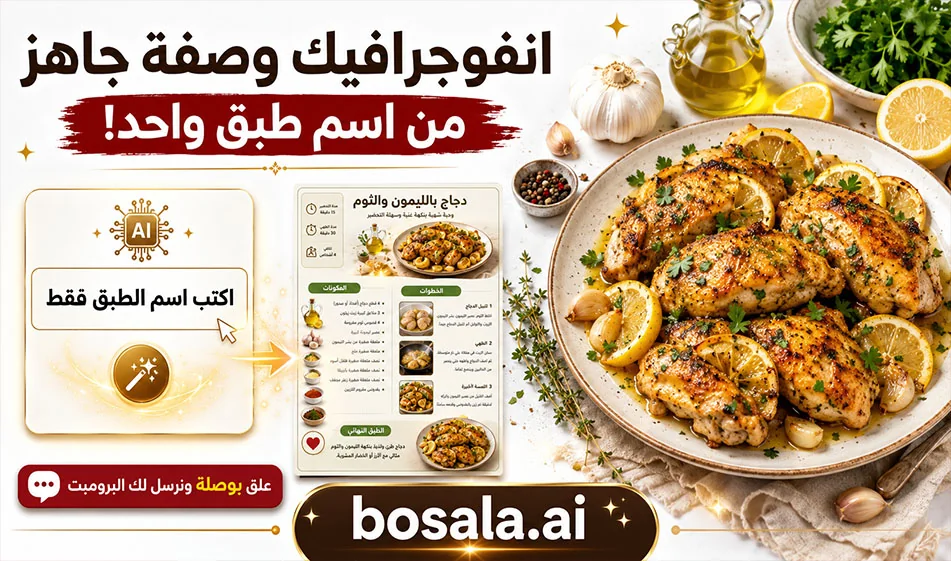
A professional prompt to turn a dish name into a complete recipe infographic
This prompt lets you create a professional recipe infographic just by typing in the dish name. Copy the prompt, enter the dish name in the designated space, then generate it on ChatGPT or Nanopana to get a complete design that includes ingredients, quantities, preparation steps, and the final dish in an organized and professional format.
Overview
If you want to design a visually appealing recipe without starting from scratch, this prompt saves you time and effort. It converts the dish name directly into a neat infographic with a clean background, clear ingredients, numbered steps, and an appetizing final image of the dish.
The two sites
Chat GPT
Nanopana
What makes this prompt special?
This prompt only requires the name of the dish; it handles the rest automatically. It:
- Selects the appropriate ingredients
- Determines reasonable quantities
- Organizes the cooking steps clearly
- Produces a professional, clean design
- Clearly adds " bosala.ai "at the bottom of the design
How do you use it?
It’s very simple to use:
- Copy the prompt as is
- Type the name of the meal in the designated line
- Paste it into ChatGPT or Nanopana
- Click "Generate"
What is the result?
The result is a complete infographic recipe that includes:
- The dish name
- Ingredients and their photos
- Quantities
- Preparation steps
- A final photo of the meal
- Neat visual layout, ready for publication
Ready-to-use prompt
Dish name: [Type the dish name here]
Generate a high-end recipe infographic for the dish named above, in a top-down view, using a clean minimal layout on a pure white background.
The infographic should include:
- Realistic ingredient photo cutouts
- Clear ingredient labels with suitable quantities
- A neat step-by-step cooking flow
- Dotted lines connecting the steps
- Small cooking icons to represent actions
- A final plated hero shot of the completed dish at the bottom
Visual style:
premium editorial recipe infographic, modern cookbook aesthetic, elegant spacing, clean composition, soft natural light, photorealistic food, sharp readable typography, minimal white design, organized and visually appealing.
Instructions:
- Automatically choose the correct ingredients and realistic quantities for the dish.
- Show only the essential ingredients.
- Use short, readable labels beside each ingredient.
- Show the recipe process in 3 to 6 simple visual steps depending on the dish.
- Use icons that match the cooking actions.
- Make the final plated dish look delicious and polished.
Branding:
- Add "bosala.ai" prominently as a visible branded footer at the bottom of the infographic.
- Make "bosala.ai" larger, clearer, and more noticeable than a normal credit line.
- Style it in a clean, modern, premium way, as part of the design.
- It should feel like a branded signature or publisher mark, not a watermark.
- Place it in a prominent position at the bottom center or bottom corner with elegant spacing.
Important:
accuracy matters; the dish ingredients and steps must match the dish name. Keep the design clean and premium. No watermark, no clutter, no messy layout.
Quick example
Instead of:
Dish name: [Type the dish name here]
You can write:
- Dish name: Maqluba
- Dish name: Chicken Biryani
- Dish name: Pasta Alfredo
Summary
This prompt is an excellent choice for anyone who wants to quickly create professional-looking visual recipes. Just type in the dish name, and let the tool handle the rest—it will build a complete, organized infographic that’s ready to publish.
About ChatGPT
- Answers with improved factual accuracy and a 400k token context window
- Offers Advanced Voice Mode with emotion understanding, real-time translation and natural interruptions
- Provides Canvas, a side-by-side workspace for writing and coding
- Remembers preferences, projects and instructions across conversations
- Generates short video clips with Sora integration for Plus and Pro users
- Available as native apps for Windows, macOS, iOS and Android
About Gemini 2.5 Pro
- Processes text, images, audio and video in a single context
- Handles up to 1 million input tokens for large projects and documents
- Function calling to run commands within the conversation
- Executes code directly as part of its reasoning
- Retrieves real-time information through web search
- Advanced reasoning for complex coding, math and science problems
- Controls the tone and style of audio output
- Available via Google AI Studio, Gemini API, Vertex AI and the Gemini app
About Google Gemini
- Plans and executes multi-step tasks such as trip planning, booking and emailing
- Understands text, real-time video, 3D spatial relationships and audio
- Integrates with Android, Google Workspace and Gemini for Home
- Reasons through complex logic by default with a 2 million+ token context window
- Shares camera or screen in real time with Gemini Live
- Runs autonomous Deep Research and produces reports with citations
- Turns PDFs, Docs or Slides into conversational podcast-style Audio Overviews
- Generates video with Veo 3 and edits images with Nano Banana
- Runs Gemini Nano on-device for offline summaries and translations
About Nano Banana
- Edits and transforms photos from text prompts
- Creates designs in cartoon, artistic, creative and realistic styles
- Generates short videos in portrait, square and landscape formats
- Adds audio or creates silent videos
- Provides ready-made templates that are updated regularly
- Available on iOS, iPadOS, macOS and visionOS
Related Tips
- How to Use the Pokecut Tool to Easily Extract Images
- Bosala Brand Studio Explains: How to Create a Complete Visual Identity from a Logo in Minutes?
- How to Create a Series of Educational Videos Using ChatGPT, PixVerse, and Nabat?
- An Explanation of GeminiGen AI for Creating Videos and Images for Children
- A Comparison of VisualGPT and NoteGPT for Creating Free Images and Designs on GPT Image 2