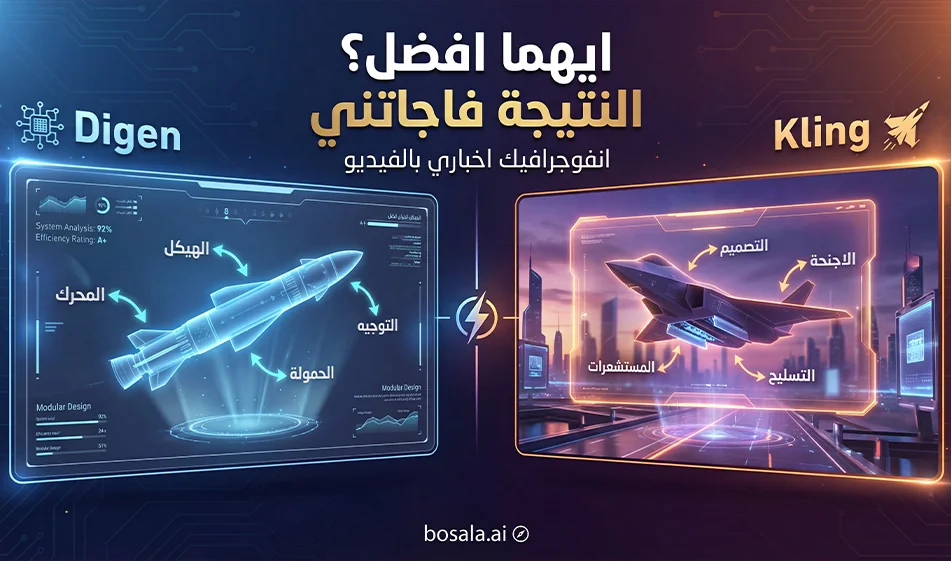
: digen.ai vs kling.ai for creating a news infographic video about military equipment

: digen.ai vs kling.ai for creating a news infographic video about military equipment

A Comparison: digen.ai vs kling.ai for Creating News-Style Infographic Videos About Military Equipment

The Idea
Instead of explaining the news with a long text, create a short infographic clip that visually conveys the idea in 8 to 10 seconds. Use the same prompt and settings on both tools, then choose the winner based on the result, not the name.

Links:

https://kling.ai/app/

https://digen.ai

Compass Note
Keep the content purely explanatory and educational, without scenes of gunfire, explosions, or any suggestions of misuse or harm. The goal is to simplify the information, not to glorify violence.

Why this type of content gets more views
The viewer gets the idea within the first two seconds
The short clip autoplay
Infographics build trust because they look organized and professional
Perfect for Shorts and Reels

Fair comparison plan in 10 minutes
1
Choose only one topic per experiment
Experiment 1: A rocket in simplified anatomical form
Experiment 2: A stealth aircraft in a simplified schematic

2 Set the same settings for both tools
Vertical measurement 9:16
Duration: 8 seconds
No text in the video
No audio
Only one camera movement

3. Create only two takes per shot
First version
Second version
Then choose the best of each instrument

The five judging criteria
Stability of form and lack of distortion in details
Smooth motion without jitter
Stable lighting without flickering
Clarity of the concept within the first two seconds
A strong ending with a steady shot of the protagonist in the final second

A news infographic production style suitable for social media
Best structure for eight seconds
0
to 2 seconds: Introductory exterior shot
2
to 6 seconds: Simplified explanatory shot with hints of where the explanation will go
6
to 8 seconds: Clean final shot of the protagonist with space ready for text later

Tip:
Do not include text in the animation. Keep the video clean, then add Arabic captions later in Canva using a clear font.

Ready-to-use prompt 1: Simplified anatomical infographic
Copy and paste as is into digen.ai and kling.ai

Create an 8-second vertical 9:16 ultra-clean CGI infographic video, educational and non-operational, no violence, no firing, no explosions, no impact scenes.
Subject: a generic rocket concept shown as a simplified cutaway for news explanation.
Scene 0-2s: slow cinematic orbit around the exterior, studio lighting, dark clean background, high-end reflections.
Scene 2-6s: transition to a transparent cutaway view showing simplified internal compartments as clean geometric shapes, not detailed mechanics. Add three blank callout plates with leader lines, but no text inside the video.
Scene 6-8s: return to a strong hero shot of the exterior, perfectly stable, with empty space for captions later.
Camera: smooth, slow, no shake.
Style: realistic materials, premium lighting, minimal background, high clarity, no distortion, no stretching.
Audio: none.
No text, no subtitles, no logos, no watermarks.

Prompt Ready 2: Simplified Anatomical Infographic of a Stealth Aircraft
Copy and paste as is into digen.ai and kling.ai

Create an 8-second vertical 9:16 premium CGI infographic video, educational and non-operational, no combat, no weapons firing, no explosions.
Subject: a generic stealth jet concept for news-style explanation.
Scene 0-2s: cinematic reveal, slow orbit around the aircraft in a dark studio environment, clean reflections.
Scene 2-6s: switch to a semi-transparent cutaway showing simplified internal zones as clean shapes and layers, with two to three blank callout plates and leader lines, but no text inside the video.
Scene 6-8s: final hero shot of the aircraft, centered, perfectly stable, empty space reserved for captions later.
Camera: smooth orbit, gentle push-in only, no jitter.
Style: ultra clean, high-end, minimal, realistic materials, no distortion.
Audio: none.
No text, no subtitles, no logos, no watermarks.

How to turn the results into a powerful comparison reel
1-second clip with on-screen title in Canva
Same prompt on two tools
2–6 second clip: Split screen showing the results of the first tool versus the second
6–8-second clip: Give a quick review in just three words
Smoothness of motion
Cleanliness of the infographic
Then an interactive question
Which result is closest to a TV news report and why

Tips for minimizing distortions
Reduce camera movement
Ask for just one scene without too many changes
If errors appear, don’t change the entire prompt
Add just one line at the end: "
" No distortion, stable geometry, smooth motion, clean cutaway

Bousla Summary
Start with the simplified infographic first because it produces cleaner and clearer results for news. Run the same prompt on digen.ai and kling.ai, then choose the winner based on stability, smoothness, and clarity, and finally add Arabic captions in Canva to get a news video ready for publication.

April 05, 2026 01:05 PM GMT
About Kling AI

🖼️ Tool Name:
Kling AI

🔖 Tool Category:
AI Video Tool – Converts text or images into realistic short videos using highly advanced technology.

✏️ What does this tool offer?
Kling AI lets you generate realistic videos from just a text prompt or image in seconds — no editing or design experience needed.
You can write a script, choose camera angles, select the video style, and the tool does the rest automatically.
You can also edit the video inside the tool — add or remove elements, merge content, or simulate cinematic camera motion.

What does the tool actually deliver based on user experience?

  • The video quality is very strong, especially in motion and scene composition.

  • Generation is relatively fast, but free users sometimes experience stuck generation (at 99%) or failure.

  • The interface is simple and clear, with helpful features like motion control, positive/negative prompt settings.

  • Users say the experience is similar to professional tools like Runway Gen-3, but cheaper and easier.

  • Some users have complained about slow customer support, especially on the free plan.

  • Pro Mode offers excellent results: larger video resolution, no watermark, and faster generation.

💰 Pricing Model:

  • Free: 66 points daily (enough for one short video), but generation might sometimes fail.

  • Standard: $10/month — 660 points, no watermark, HD quality, faster performance.

  • Pro: $25–37/month — 3,000 points, longer videos, higher quality, faster rendering.

  • Premier: $64–92/month — 8,000 points, priority generation, and instant support.

🆓 Free Plan Details:

  • 66 points daily for free

  • Allows short video generation (5–10 seconds)

  • May occasionally fail or hang

  • Suitable for experimentation or very light use

🧭 Access Method:

  • Create a basic account

  • Choose generation type (text or image)

  • Write a prompt or upload an image

  • Get your video within roughly one minute

🔗 Experience Link:

About Kling 1.6

🖼️ Tool Name:
Kling 1.6 (Kling AI)

🔖 Tool Category:
AI-powered video generation; falls under Video Generation and Content Creation & Communication.

✏️ What does this tool offer?
Kling 1.6 is an advanced AI model that transforms images or text prompts into short, realistic video clips. It supports both image-to-video and text-to-video workflows, making it easy for creators to animate scenes with professional-grade motion and effects.

What does the tool actually deliver based on user experience?
• ❖ Up to 195 % improvement in image-to-video quality from Kling 1.5, with sharper motion and visual fidelity 
• Dual modes: Standard (720p, up to 5 s) and Pro (1080p, up to 10 s with first/last frame control) 
• Natural camera movements (pan, zoom), lifelike motion, and better prompt adherence 
• Supports image-conditioning, full HD output, and advanced scene dynamics

🤖 Does it include automation?
Yes — Kling 1.6 automates:
• Generating animated video clips from images or text prompts
• Camera motion simulation and motion dynamics
• Rendering transitions and maintaining visual consistency between frames
• Frame control for pro users (first + last frames)

💰 Pricing Model:
Freemium with usage-based credits; paid tiers available.

🆓 Free Plan Details:
• Free-tier access with limited credits
• Standard mode usage (720p, basic features)
• Access via web demos or platforms like Pollo AI

💳 Paid Plan Details:
• Pay-per-credit: ~20 credits for 5s Standard video, ~35 credits for 5s Pro HD; longer 10s clips cost ~70 credits based on Pollo AI pricing 
• Subscription plans range from $10 to $92/month (tiers unlock HD, watermark removal, longer clips) 

🧭 Access Method:
• Web-based via Kling AI platform or partners (Pollo AI, getimg.ai, Segmind, BasedLabs) 
• Some offer API access (e.g., Segmind text-to-video) 

🔗 Experience Link:

https://app.klingai.com

About Kling

️ 🖼Tool name: Kling 2.1
🔖 Tool Category: AI Text-to-Video & Image-to-Video
️ ✏What does this tool do?
Kling 2.1 allows users to convert still images or text into short, high-quality videos (5-10 seconds) with realistic motion, cinematic effects, and automatic sound, helping to quickly and easily produce educational, promotional, creative, or entertainment content.
What do you actually offer based on user experience?

  • Convert text or images to video in up to 1080p quality.

  • Add cinematic effects and realistic animations.

  • Support multiple video styles: Cinematic, educational, promotional, or entertainment.

  • Easy-to-use interface suitable for beginners and professionals.

  • Ability to add automatic sound and background music.
    🤖 Does it include automation?
    Yes, it includes an automated process to create a video from text or images, and automatically add movements and sound effects.
    💰 Pricing model:

🆓 F ree plan details:

  • Experience creating a short video from an image or text.

  • Access to basic options to customize video duration and quality.

  • Add limited effects and motion.

💳 Paid plans details:

  • Access to higher video quality and more diverse options.

  • Video duration up to 10 seconds.

  • Add automatic sound and background music.

  • Support for start and end frames and cinematic motion enhancement.

  • Commercial use of videos with advanced customization features.

🧭 How to access the tool:
Kling 2.1 can be accessed via a web browser or the Android mobile app.

🔗 Experience Link or official website: Experience Link